Chroma-q Vista 3 Tutorial
Mastering Chroma-Q Vista 3 Lighting: A Comprehensive Tutorial

Chroma-Q | Lighting Control Product Range
Source: chroma-q.com

Chroma-Q | Lighting Control Product Range
Source: chroma-q.com

Chroma-Q | Vista 3™ Software
Source: chroma-q.com
is a journey into the world of advanced lighting control, offering unparalleled flexibility and precision for lighting designers, technicians, and artists alike. In this in-depth tutorial, we'll delve into the intricacies of the Chroma-Q Vista 3, exploring its features, settings, and best practices to help you unlock its full potential.

Chroma-Q | Vista 3™ Software
Source: chroma-q.com
Setting Up Your Vista 3 Environment

Chroma-Q Vista Webinars • Technologies for Worship Magazine
Source: tfwm.com
Before diving into the nitty-gritty of Chroma-Q Vista 3 operation, it's essential to establish a solid foundation. This includes understanding the device's hardware components and configuring your software environment.

Chroma-Q | Vista EX™ Control Surface
Source: chroma-q.com
- Familiarize yourself with the Vista 3's control panel and dimmer pack connections.
- Download and install the latest version of Chroma-Q's software, compatible with your operating system.
- Connect your Vista 3 to your computer via USB or network, depending on your setup.

Chroma-Q | Vista MV™ Control Surface
Source: chroma-q.com
Ensure your environment is optimized for the best performance by following these setup tips:
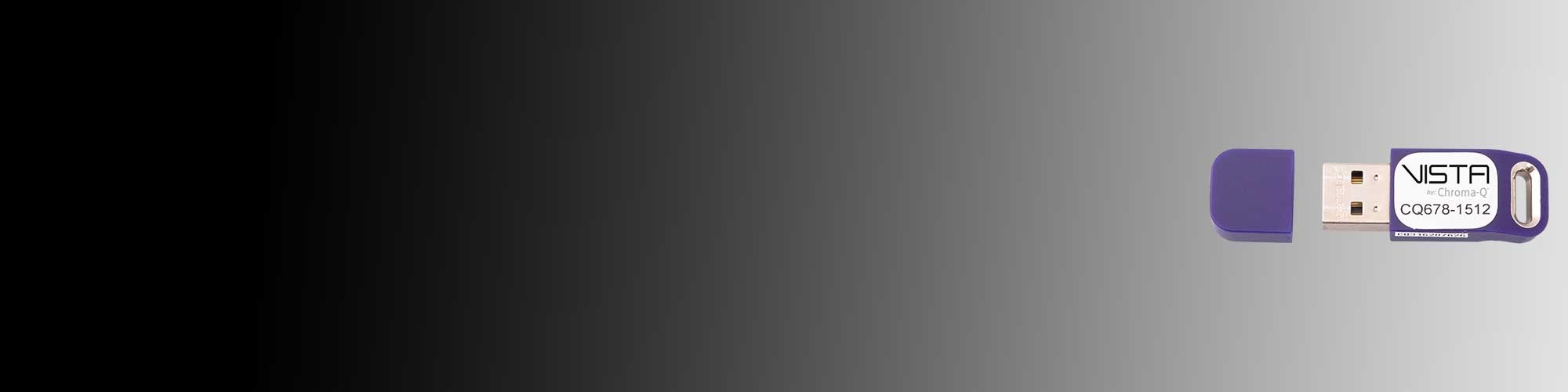
Chroma-Q | Vista 3 by Chroma-Q® Dongles
Source: chroma-q.com
- Place the Vista 3 in a well-ventilated area, away from moisture and direct sunlight.
- Keep the device at a comfortable operating temperature, ideally between 50°F to 90°F (10°C to 32°C).
- Regularly update your software to stay current with the latest features and bug fixes.

Bypass console mode - Vista 3 Releases - Vista by Chroma-Q Users Forum
Source: vistaforum.chroma-q.com
Navigating the Vista 3 Interface
Chroma-Q | Lighting Control Product Range - Vista 3 software
Source: chroma-q.com
The Chroma-Q Vista 3 boasts an intuitive interface that streamlines the lighting control process. Let's explore its core features and how to utilize them effectively.

Chroma-Q | Lighting Control Product Range - Vista 3 software
Source: chroma-q.com
The Vista 3's main window is divided into several sections, including the toolbar, panel view, and console view. Each section offers a unique set of tools and functionalities:

Chroma-Q | Lighting Control Product Range - Vista 3 software
Source: chroma-q.com
- The toolbar provides quick access to essential functions like patching, moving lights, and scenes.
- The panel view displays a comprehensive layout of your lighting setup, including dimmer packs, cables, and devices.
- The console view offers a simplified interface for monitoring and controlling your lighting fixtures.

Chroma-Q | Lighting Control Product Range - Vista 3 software
Source: chroma-q.com
To navigate the Vista 3 interface efficiently:

Vista 3 Release 5 - Public beta #2 now available! - News - Vista by ...
Source: vistaforum.chroma-q.com
- Use the drop-down menus to access advanced features and settings.
- Take advantage of keyboard shortcuts to streamline repetitive tasks.
- Customize your interface to suit your specific needs and workflow.

Chroma-Q | Lighting Control Product Range - Vista USB Device
Source: chroma-q.com
Crafting and Managing Scenes
Mastering Chroma-Q Vista 3 Scenes and Presets
Chroma-Q | Vista by Chroma-Q Announces Vista 3 Release 4
Source: chroma-q.com
One of the most powerful features of the Chroma-Q Vista 3 is its ability to create and manage complex lighting scenes. Let's explore the ins and outs of scene creation, management, and application.

The American Society of Cinematographers | Chroma-Q Updates Vista 3
Source: theasc.com
Scenes are a collection of settings and commands that can be executed with a single button press. To create a scene:
Chroma-Q | Vista 3 by Chroma-Q Software Release 3 is Now Live
Source: chroma-q.com
- Enter the scene mode by clicking on the scene button in the toolbar.
- Use the patch view to select and add fixtures to your scene.
- Configure the desired settings for each fixture, including intensity, color, and beam angles.
- Assign a name and description to your scene for easy identification.
Chroma-Q | What's New in Vista 3 R3
Source: chroma-q.com
Presets are pre-configured scenes that can be applied to specific situations. To create a preset:

Chroma-Q | Advanced Vista by Chroma-Q Training at LDInstitute
Source: chroma-q.com
- Enter the preset mode by clicking on the preset button in the toolbar.
- Choose a base scene or start from scratch.
- Make adjustments to the settings as needed.
- Save the preset and assign it a name and description.

Vista 3 by Chroma Q - Advanced training - Vista by Chroma-Q
Source: www.vistabychromaq.com
Best practices for managing scenes and presets:

Chroma-Q | Vista 3 by Chroma-Q Review in Lighting & Sound International ...
Source: chroma-q.com
- Organize your scenes and presets in a logical folder structure.
- Use descriptive names and tags for easy searchability.
- Regularly review and update your scenes and presets to ensure they remain relevant.

Chroma-Q | Vista 3 by Chroma-Q Software Release 2 is Now Live
Source: chroma-q.com
Troubleshooting and Maintenance

Chroma-Q Showcases Vista 3 at BSC Expo 2019 - Vista by Chroma-Q
Source: www.vistabychromaq.com
Maintaining the health and performance of your Chroma-Q Vista 3 is crucial for optimal operation. Here are some tips for troubleshooting and routine maintenance:

Vista by Chroma-Q Vista 3 Software | UK Sales
Source: www.ac-et.com
Common issues and their solutions:
| Issue | Solution |
|---|---|
| Fixtures not responding | Check connections, restart the Vista 3, and update software. |
| Incorrect color temperature | Adjust the color settings, ensure the fixture is properly calibrated. |
| Unstable dimmer pack | Check power supply, ensure proper ventilation, and update software. |
Regular maintenance tasks:
- Update software and firmware regularly.
- Run system checks and diagnostics.
- Clean dust from vents and internal components.
Advanced Features and Applications
The Chroma-Q Vista 3 offers a wide range of advanced features and applications for professional lighting control. Let's explore some of the most exciting possibilities:
DMX Import and Export: The Vista 3 allows for seamless import and export of DMX data, making it easy to integrate with other lighting systems.
- Use the DMX import feature to transfer settings from other devices.
- Export DMX data for backup or transfer to other systems.
DALI Control: The Vista 3 supports DALI (Digital Addressable Lighting Interface) control, enabling precise lighting control and energy efficiency.
- Configure DALI settings for individual fixtures or groups.
- Monitor and control DALI fixtures in real-time.
Scene Automation: The Vista 3 allows for automated scene changes based on time, user input, or external triggers.
- Set up automated scene changes using the scene automation feature.
- Customize scene transitions and effects.
Remote Control and Monitoring: The Vista 3 offers remote control and monitoring capabilities via the Chroma-Q app or web interface.
- Access and control your Vista 3 from anywhere using the Chroma-Q app.
- Monitor system status, receive notifications, and troubleshoot issues remotely.